Create account guide

Create a user account — step-by-step

Parent or family path, OTP verification, contacts, check-in time, first reminder, and finishing setup together.

  • Choose path
  • Verify OTP
  • Add contacts
  • Check-in time
  • First reminder
  • Finish setup

Create account guide

Create a user account

Choose the path that matches who will use this phone. You need an internet connection to create an account. Screenshots are examples; follow the current labels and options shown in your app.

Prefer day-to-day use after setup? See the How to use DailyOK user guide.

Before you begin

Install DailyOK from the official Google Play listing, keep the phone online, and decide whether this phone is for the parent or for a family member who will support a parent.

  • Free during launch — no payment details
  • Parent setup needs at least one reachable family contact
  • Family-led setup needs the parent's permission

Get DailyOK Free

Allow notifications and reminders

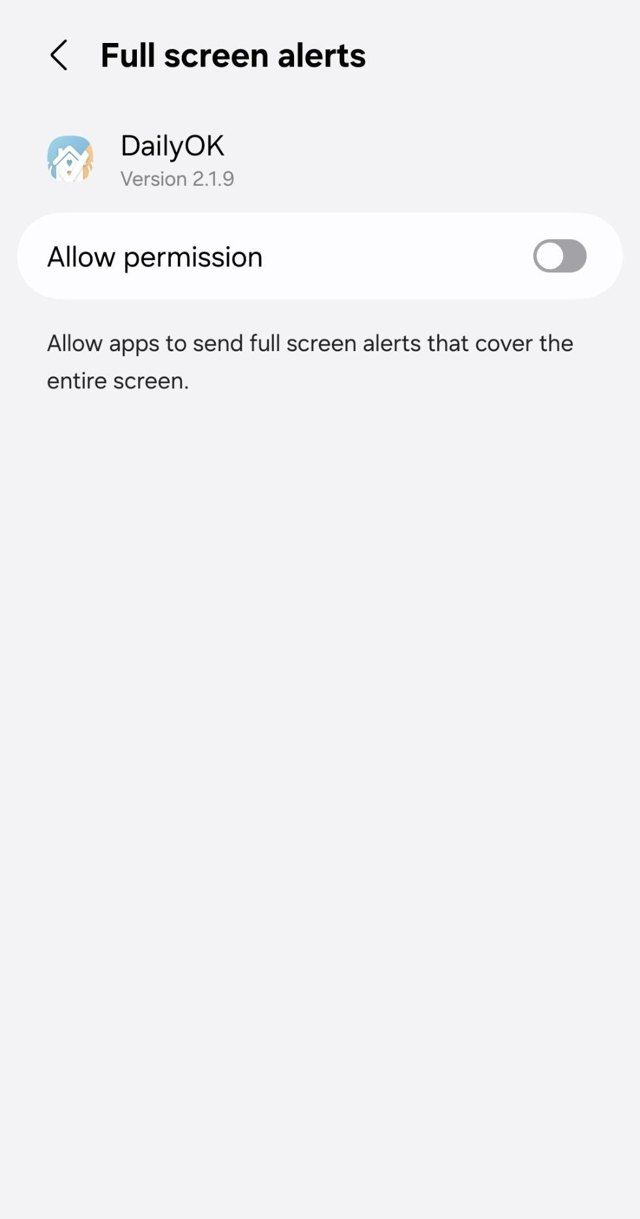
When DailyOK asks to send notifications, tap Allow notifications and then Allow. If your Android phone offers full-screen alerts, allow DailyOK on that screen and return to the app. Phone settings can look different on different devices.
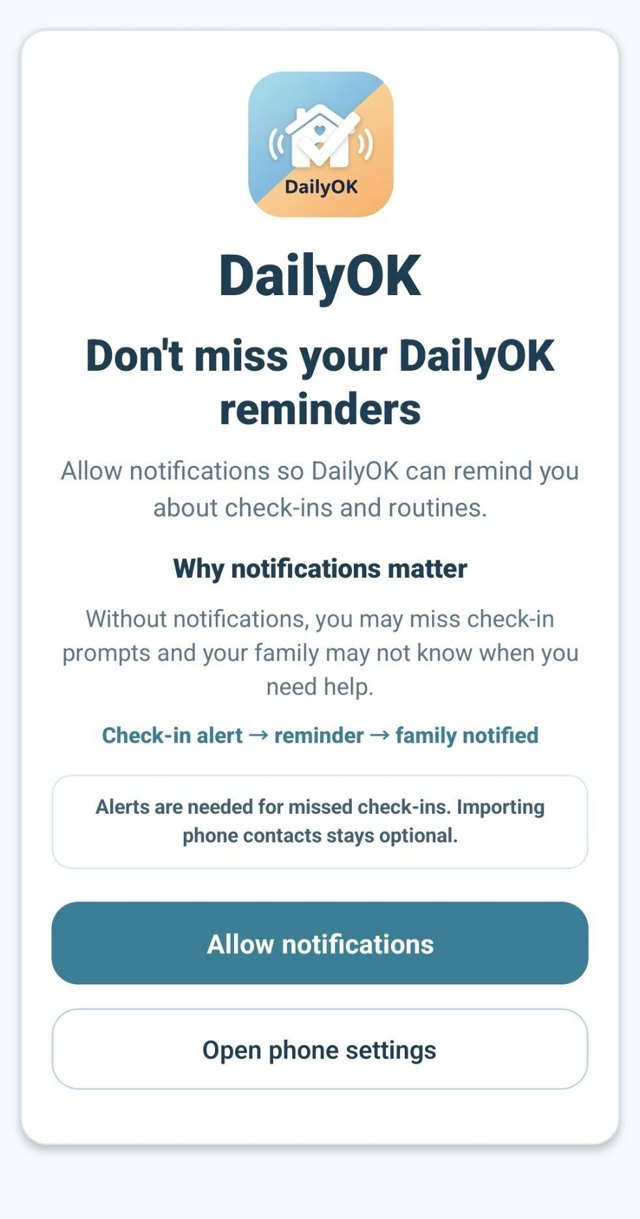
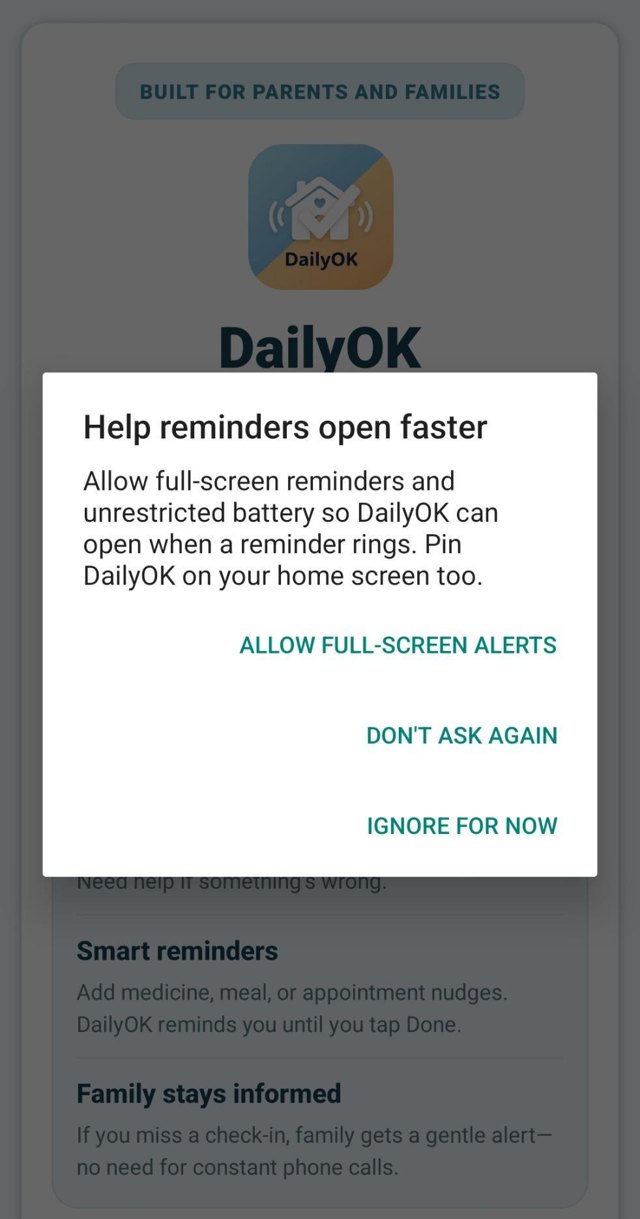
DailyOK asks to allow notifications for reminders
Allow notifications
Android system prompt to allow DailyOK notifications
System permission
Full-screen alert permission screen for DailyOK reminders
Full-screen alerts

Choose who this phone is for

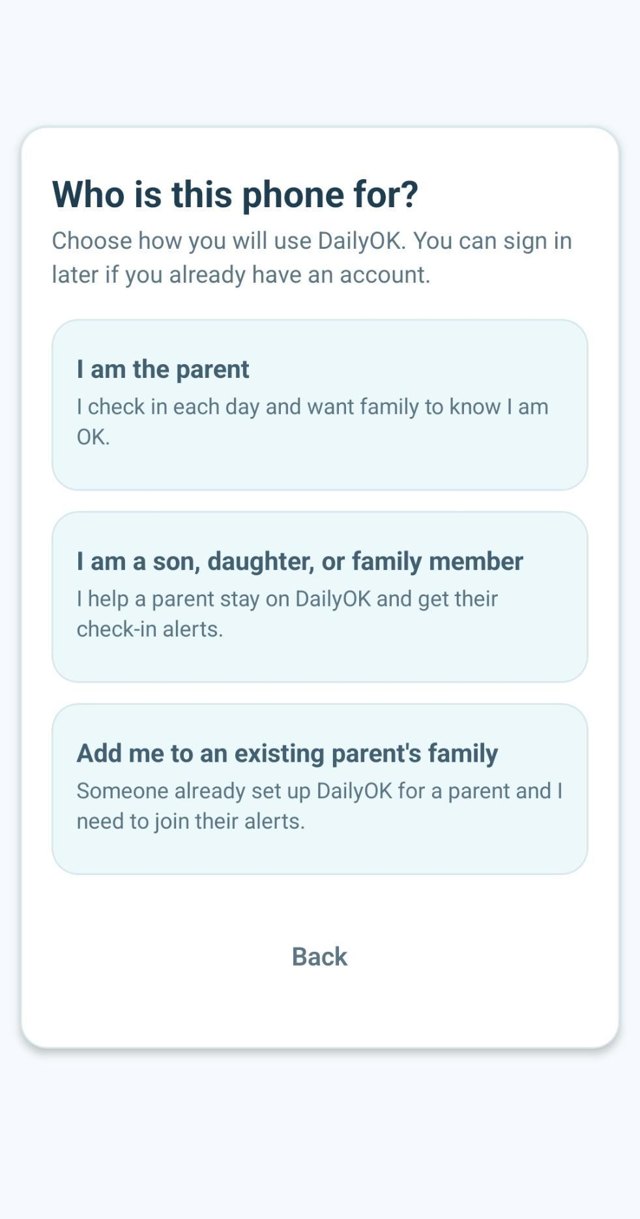
Tap Create an account. Choose I am the parent to receive your own check-ins and reminders. Choose I am a son, daughter, or family member to support a parent. If a parent already has an account, choose Add me to an existing parent's family and follow the joining instructions instead of creating another parent account.

Role picker to create a parent or family account
Parent, family, or join existing

Parent profile details

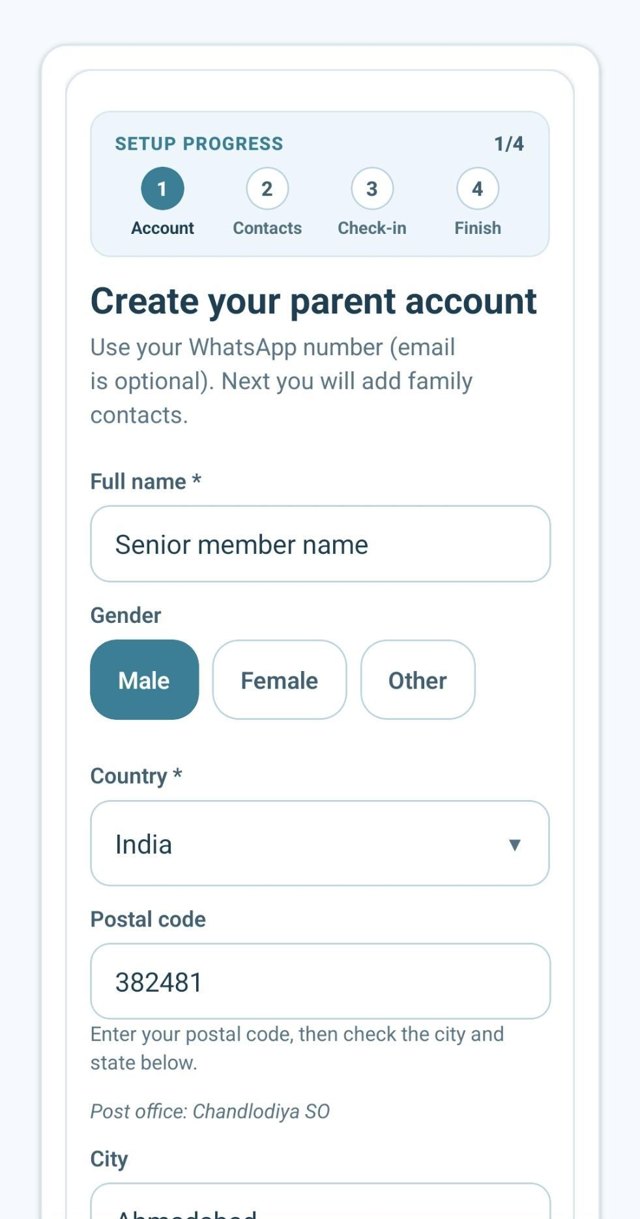
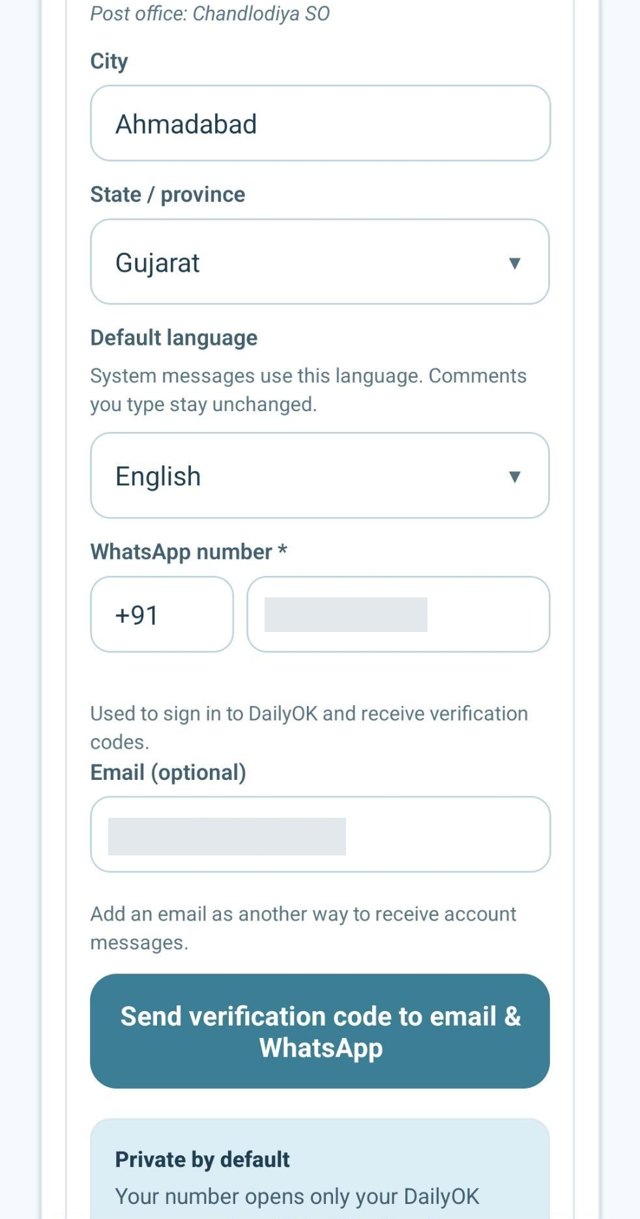
On the parent path, enter your name and WhatsApp number with the correct country code. Use your own number for your account. Add an email if you want another way to receive account messages. Complete required fields, choose your language, and check any location details before continuing.

Parent account form with name and WhatsApp number fields
Parent account form
Parent profile language and location details
Language and details

Family profile details

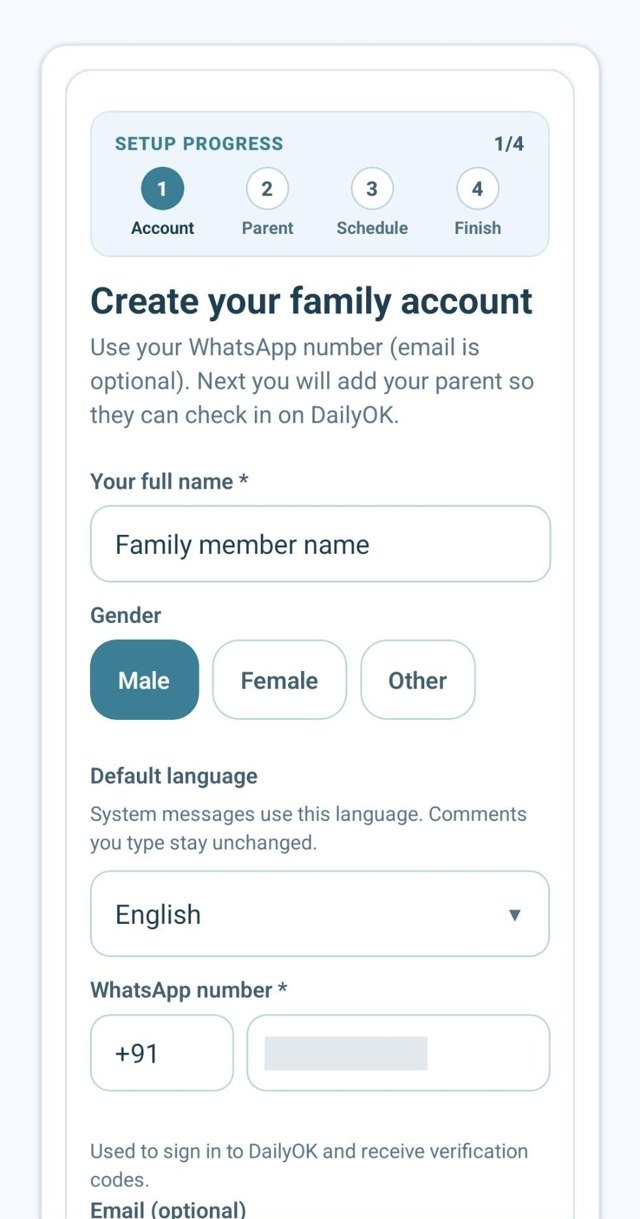
On the family path, enter your own profile details first — name, WhatsApp number, and language. Parent and family forms have different fields. You will add the parent on a later step; do not use the parent's number for your family account.

Family member account profile form
Family account form

Verify your account

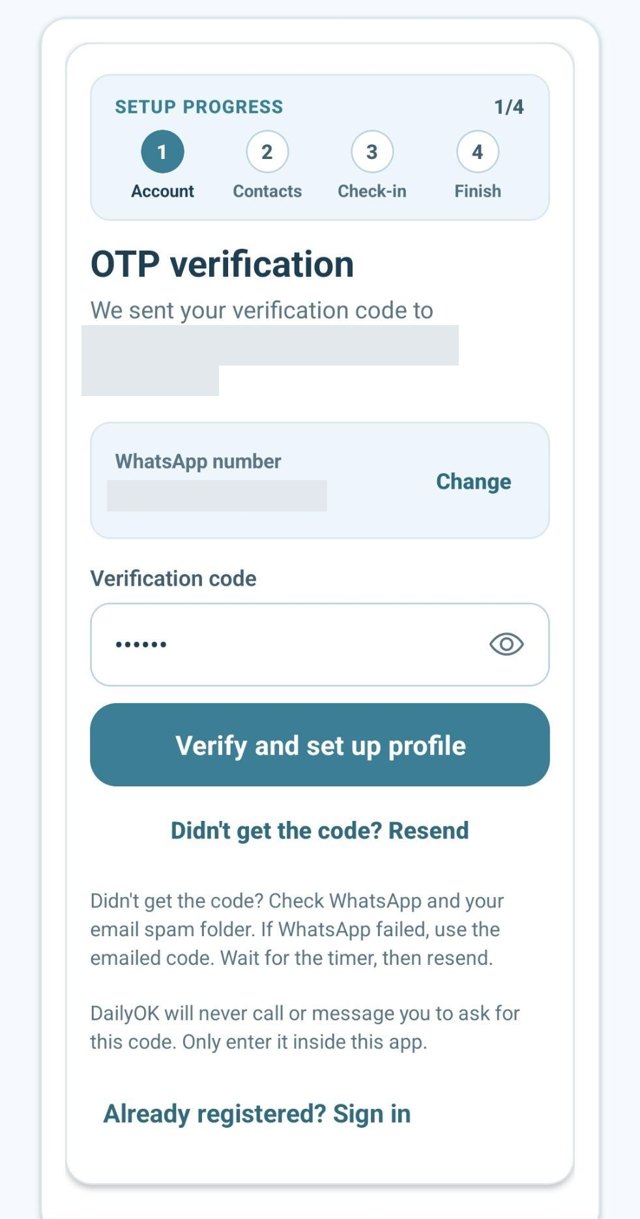
Tap the button to send a verification code. Check the delivery destination shown in the app, then enter the code and tap Verify and set up profile. Use Change if the number is incorrect. If the code does not arrive, wait for the resend timer and request another code. Never share a verification code with another person.

OTP verification screen to confirm the WhatsApp number
Enter the OTP code

Parent setup: add family contacts

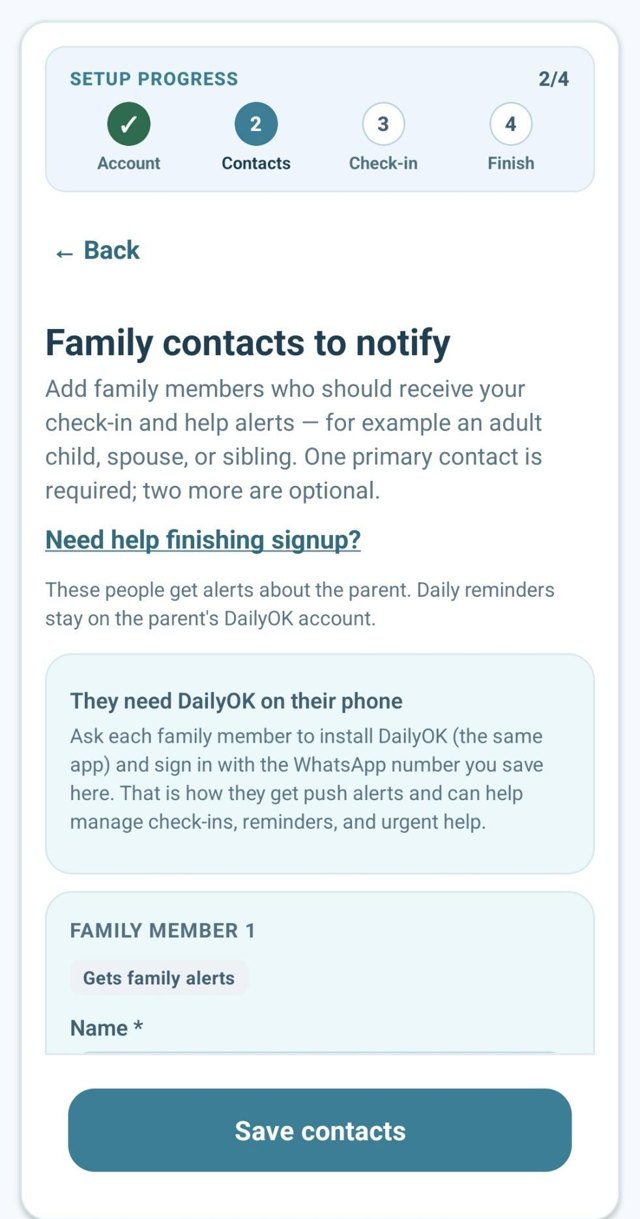
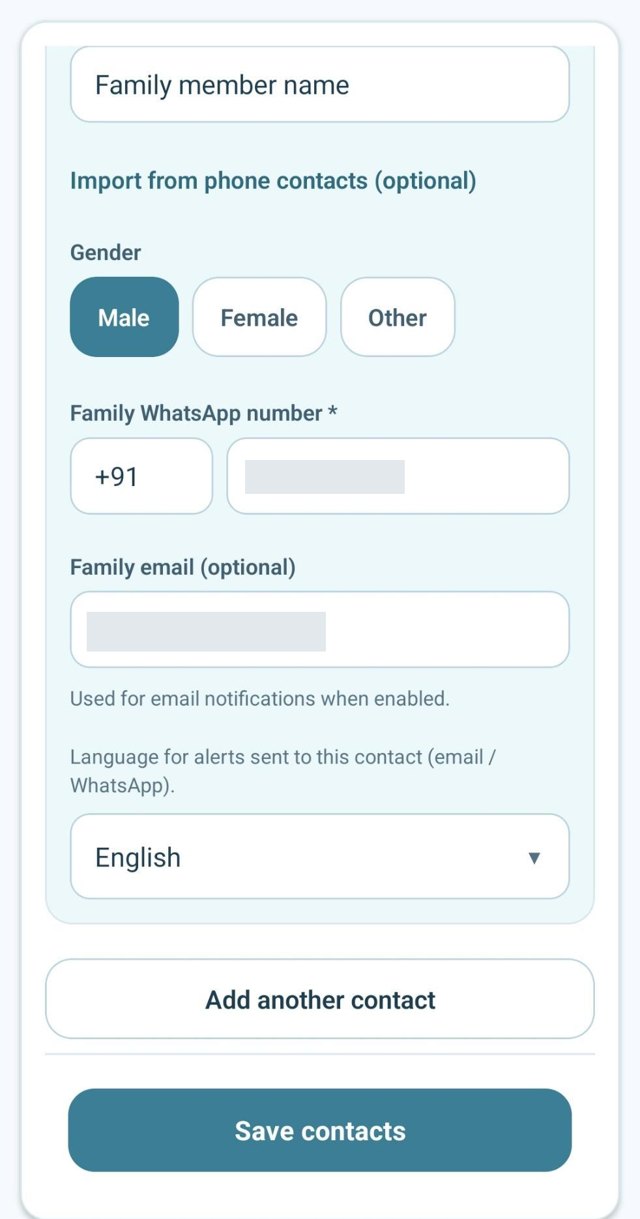
Add the family members who should receive your check-in and help alerts. Enter each person's details carefully, choose the available notification options, and tap Save contacts. Use Add another contact for more people. Ask family members to install DailyOK and sign in with the number you added so they can see your updates.

Add family contact details during parent setup
Add a family contact
Saved family contacts with notification options
Save contacts

Family setup: add your parent

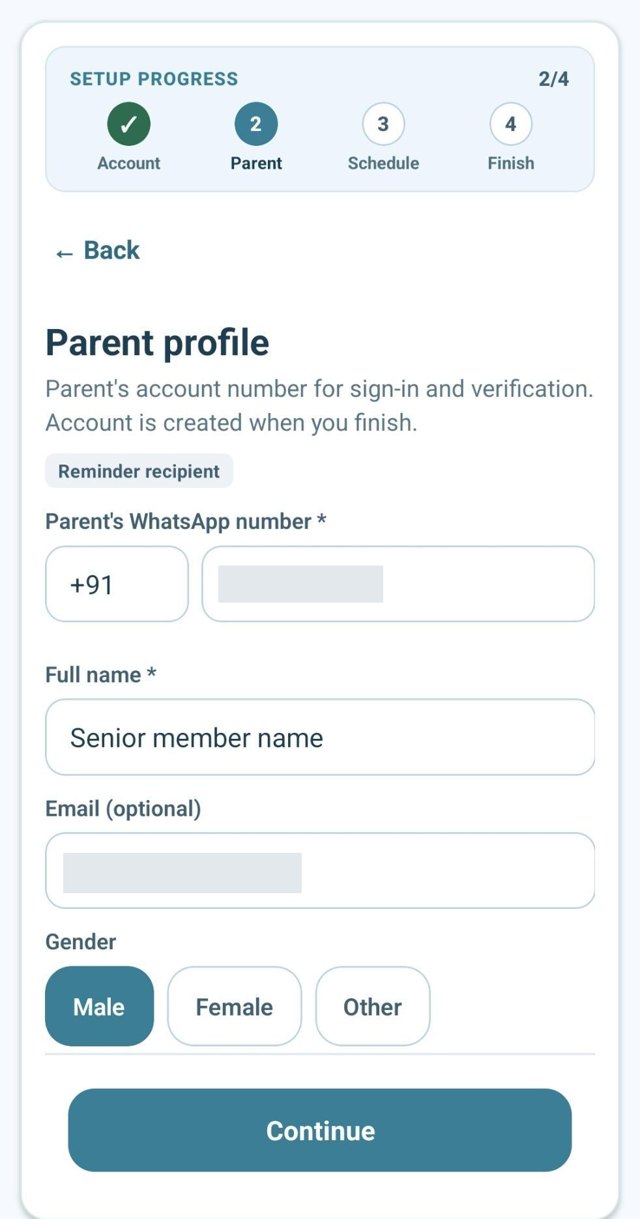
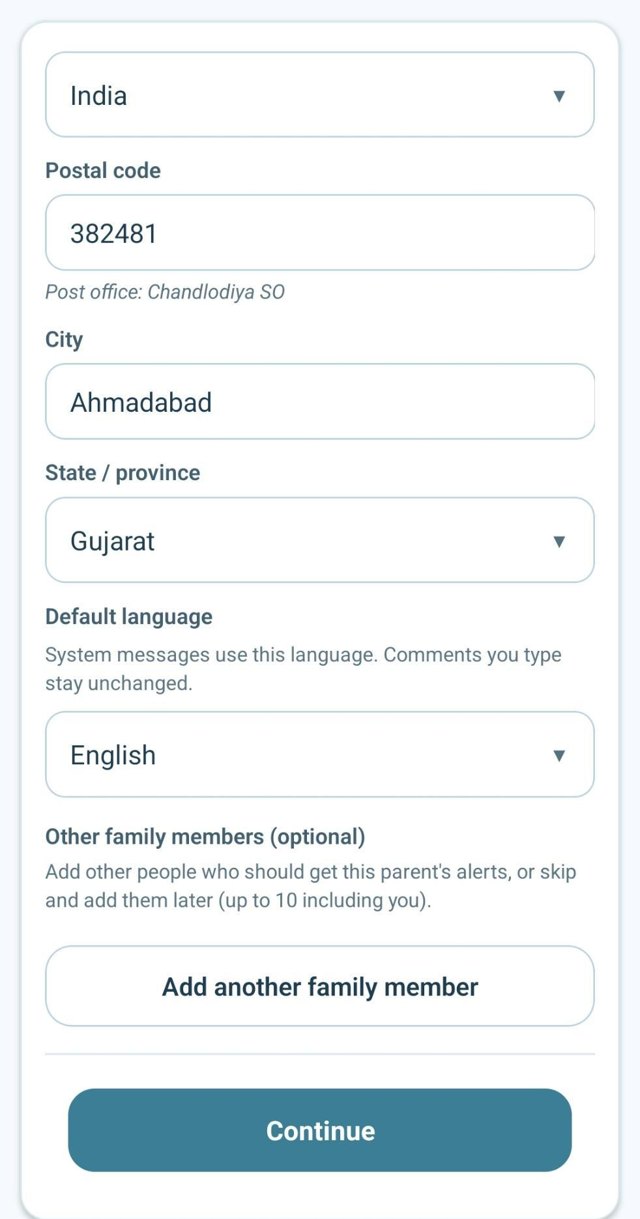
Enter your parent's own WhatsApp number and profile details. Use a different number for your own family account. Add other family members if needed, then tap Continue. Get your parent's permission before creating their account. If the app finds an existing account, follow its linking instructions.

Family flow form to enter parent WhatsApp number and profile
Parent details
Confirm parent profile before continuing family setup
Confirm and continue

Choose a daily check-in time

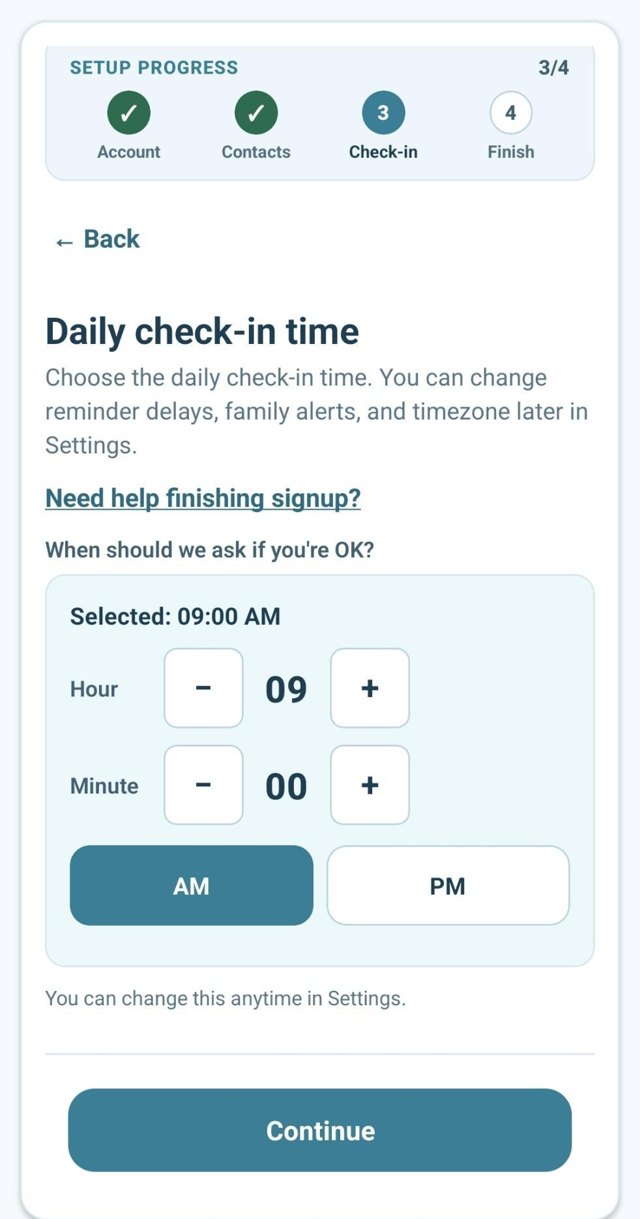
Choose when DailyOK should ask the parent if they are OK. Check the hour, minute, and AM or PM carefully, then tap Continue. You can change the check-in time later in Settings.

Daily check-in time picker during account setup
Set check-in time

Add the first custom reminder

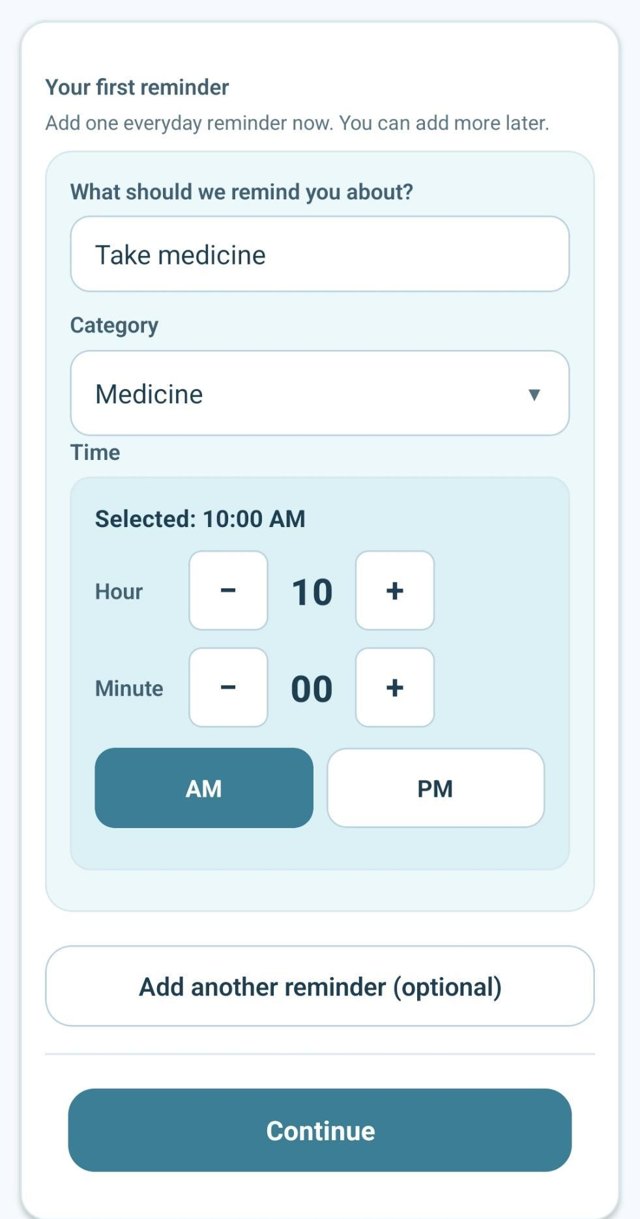
Enter a simple reminder such as Take medicine, choose its category and time, and add another reminder if needed. This is separate from the daily check-in. Check AM or PM and tap Continue.

Create first custom reminder with category and time
Custom reminder

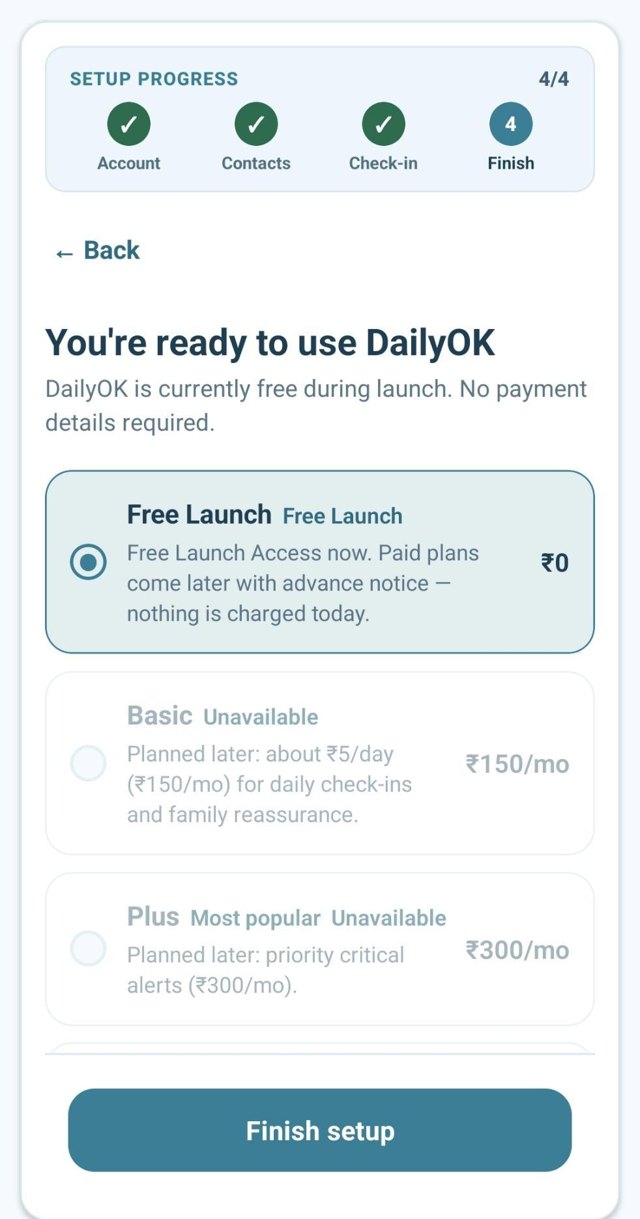
Review plan selection and finish

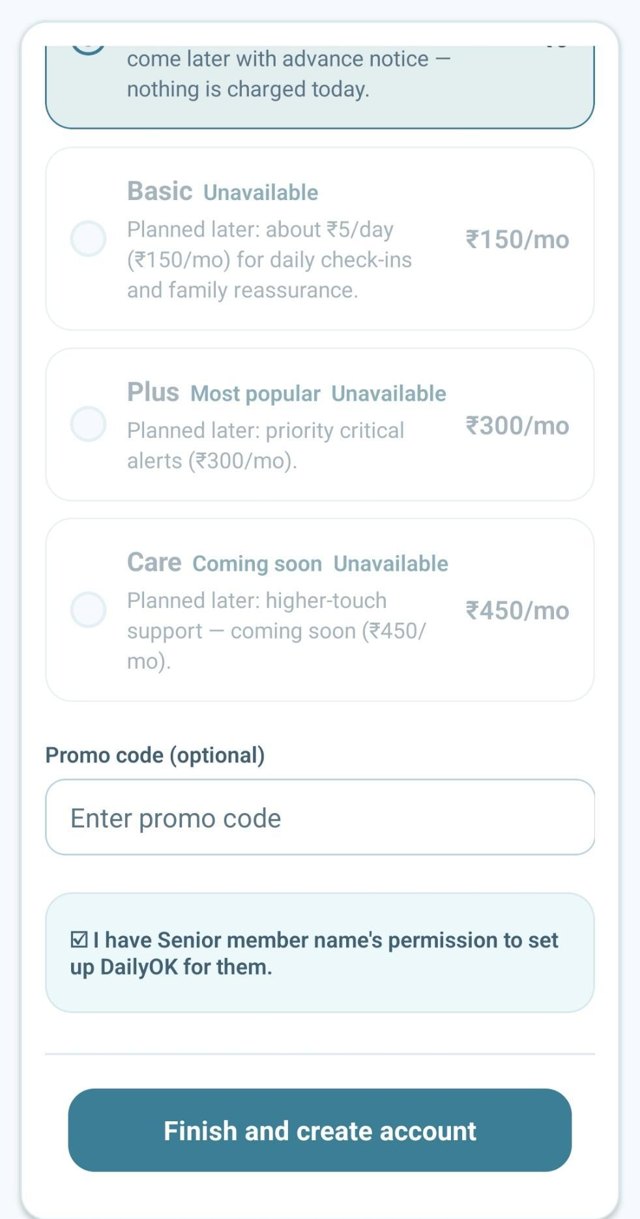
Review the plan and options currently offered in the app; availability and prices can change. Free Launch Access needs no payment details. For family-led setup, confirm you have your parent's permission. Tap Finish setup or Finish and create account. Wait for the success message before leaving the screen.

Plan selection screen during setup including Free Launch Access
Plan selection
Finish setup confirmation after reviewing the plan
Finish setup

Start together

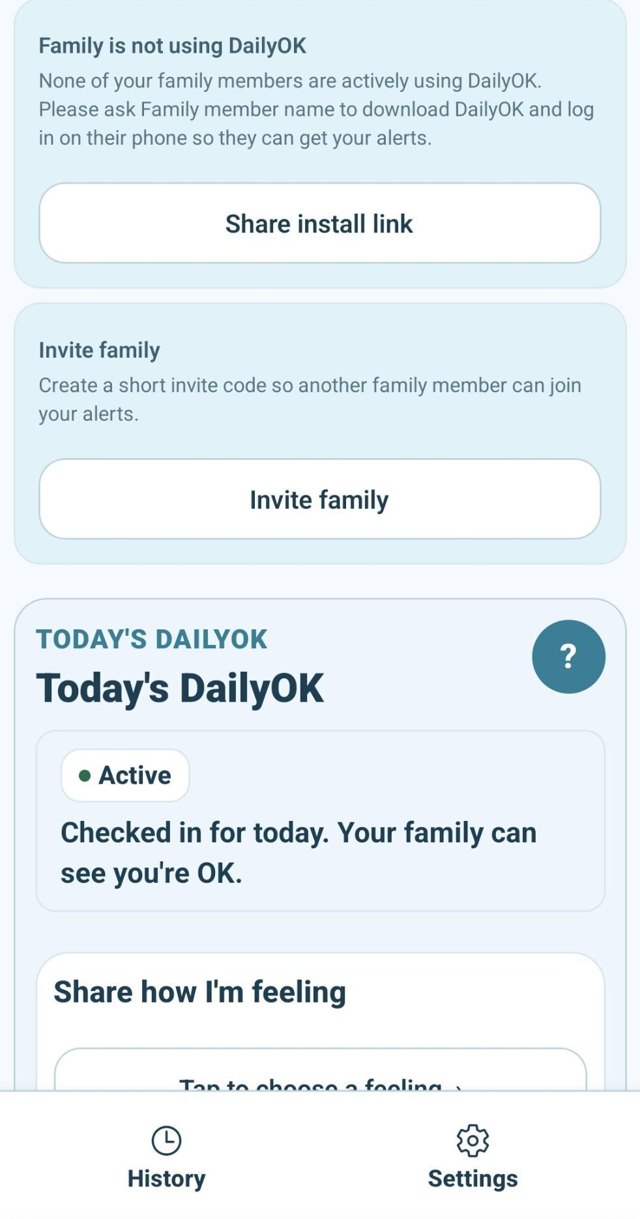
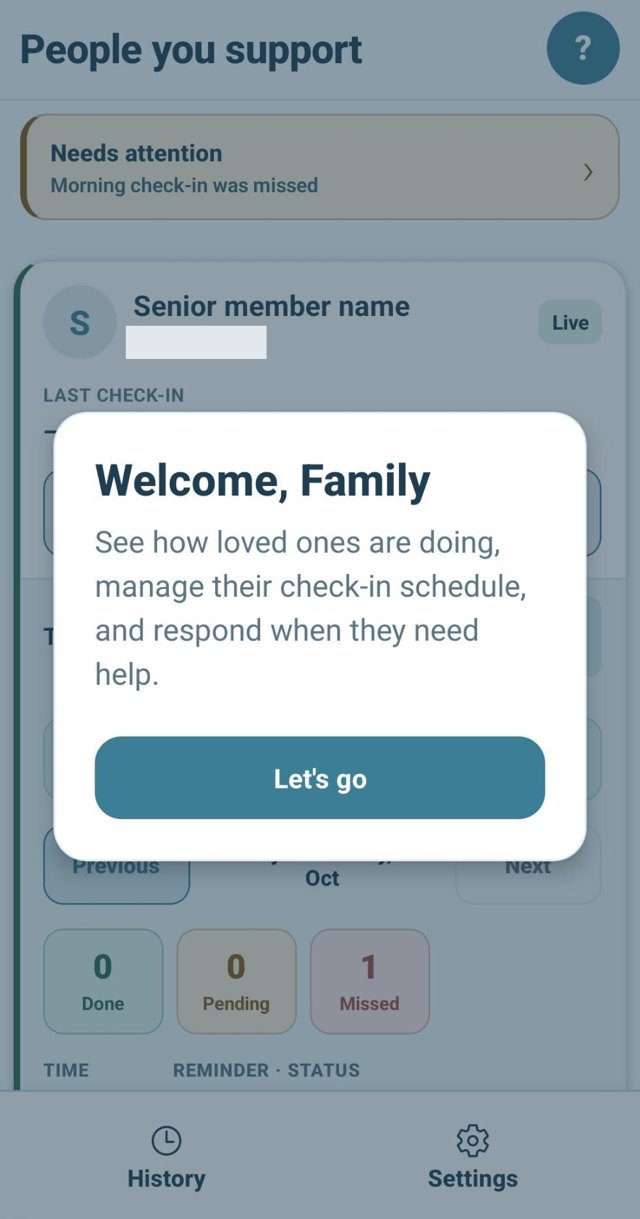
On the parent's phone, check that reminders are allowed. On the family phone, open People you support and check that the correct parent appears. Use the daily-use manual in Settings → How to use application to learn about check-ins, reminders, and family updates.

Open How to use DailyOK Get DailyOK Free

Parent home screen after setup is complete
Parent home
Family People you support list showing the linked parent
People you support

Quick answer

What this page helps with

  • Choose a path: parent self-setup, family supporter, or join an existing parent family.
  • Verify and finish: OTP verification, family contacts, check-in time, and first reminder.
  • Start together: confirm reminders on the parent phone and the linked parent in Family Hub.